
Install Telegrive on iPhone
Telegrive isn't in the App Store. On iPhone, you install it with a free helper app and your own Apple Account. It takes about 20 minutes the first time, and you need a computer for part of it. Each step shows the screen you'll see; tap a picture to make it bigger.
Open this page on your computer and your iPhone. You'll go back and forth between them.
Before you start
An iPhone with iOS 15 or newer. To check, open Settings›General›About and look at iOS Version.
A computer, Windows or Mac, and a cable that connects your iPhone to it.
Your Apple Account (also called Apple ID): the email and password you use for the App Store. The helper app uses it to let Telegrive run on your iPhone. If you'd rather not use your main one, create a new free Apple Account and use it only for this.
Wi-Fi, with your iPhone and your computer on the same network.
Telegrive needs a refresh once a week. Apple lets apps installed this way run for 7 days at a time. Refreshing takes a few seconds, and the steps below show how. If the week runs out, Telegrive won't open until you refresh it, but nothing is lost: your files are in Telegram and you stay signed in.
Three apps at most. A free Apple Account can have three apps installed this way at once. SideStore and AltStore count as one of them.
Choose a helper app
All three are free and do the same job. If you're not sure, choose Sideloadly.
Install with Sideloadly
On your computer
-
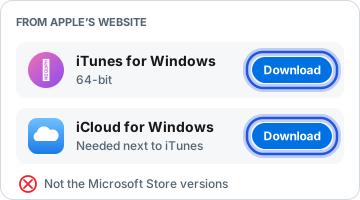
Windows only: install iTunes and iCloud from Apple's website. Sideloadly needs them to talk to your iPhone. Use the links on Sideloadly's website. The versions from the Microsoft Store don't work, so if you have those, uninstall them first.
-
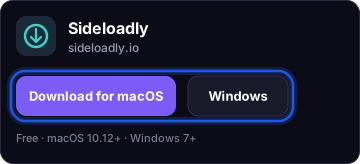
Install Sideloadly from sideloadly.io, its only official website.
-
Download Telegrive to the computer. It's one file, ending in .ipa.
Download Telegrive for iPhone
-
Connect your iPhone to the computer with the cable, and unlock it. If the iPhone asks
Trust This Computer?
, tap Trust and enter your passcode.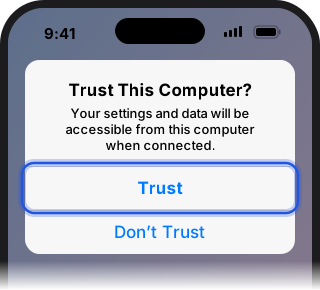
-
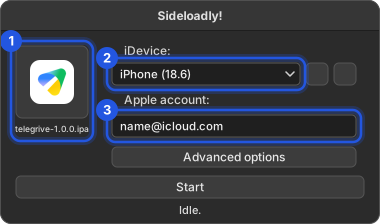
Open Sideloadly. Drag the Telegrive file onto the IPA icon. Check that your iPhone is selected, and type your Apple Account email in the box for it.
-
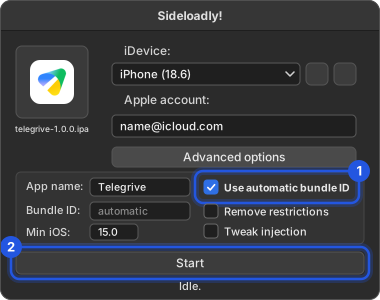
Click Advanced options and tick Use automatic bundle ID, if it isn't ticked already. Then click Start.
-
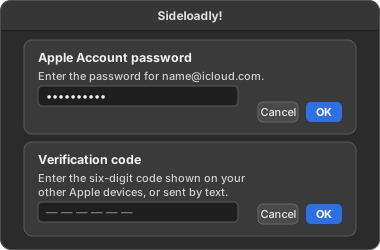
Sign in when asked. Enter your Apple Account password, then the verification code that appears on your other Apple devices or arrives by text. Wait until Sideloadly says it's done.
On your iPhone
-
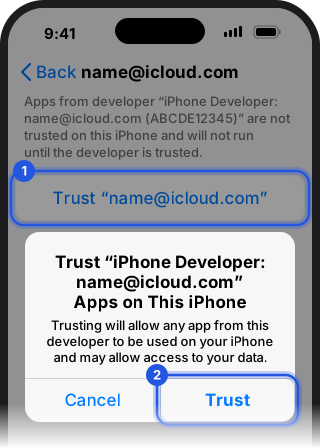
Trust your Apple Account. Open Settings›General›VPN & Device Management. Under Developer App, tap your email, tap Trust, then tap Trust again.
-
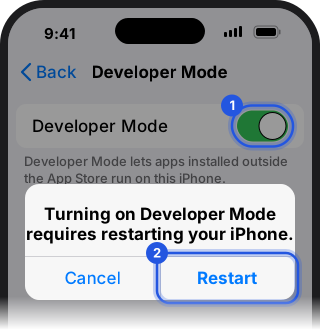
Turn on Developer Mode (iOS 16 and newer). Open Settings›Privacy & Security›Developer Mode, near the bottom. Turn it on and tap Restart. When the iPhone is back on, tap Turn On and enter your passcode.
-
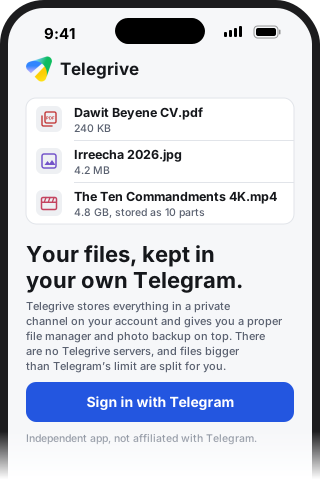
Open Telegrive and sign in with your Telegram phone number. It finds your drive, or sets one up, and offers to back up your photos.
Every week
Plug your iPhone into the computer, open Sideloadly, and click Start again with the same Telegrive file and Apple Account. Telegrive runs for another 7 days, and you stay signed in. Sideloadly can also refresh by itself while the computer is on; you'll find automatic refreshing in its settings.
Install with SideStore
On your iPhone
-
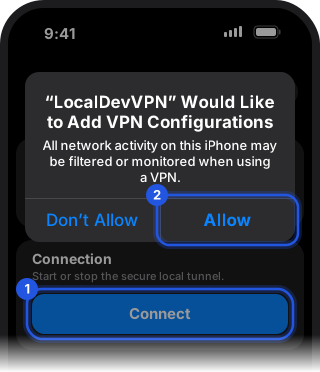
Get LocalDevVPN from the App Store. Open it, tap Connect, and allow it to add a VPN configuration. SideStore needs it switched on whenever it installs or refreshes an app.
On your computer
-
Windows only: install iTunes from Apple's website. It lets the computer talk to your iPhone. The version from the Microsoft Store doesn't work.

-
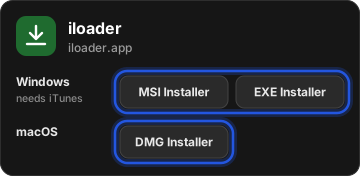
Install iloader from iloader.app. It's the tool that puts SideStore on your iPhone.
-
Connect your iPhone to the computer with the cable, and unlock it. If the iPhone asks
Trust This Computer?
, tap Trust and enter your passcode. -
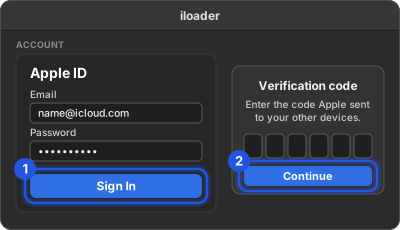
Open iloader and sign in with your Apple Account email and password, then the verification code Apple sends you.
-
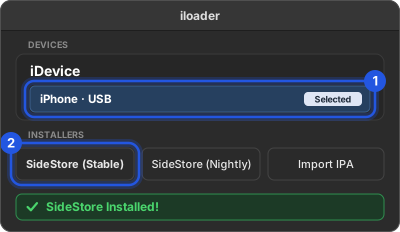
Select your iPhone, then click SideStore (Stable). Wait until iloader says
SideStore Installed!
Back on your iPhone
-
Trust your Apple Account. Open Settings›General›VPN & Device Management. Under Developer App, tap your email, tap Trust, then tap Trust again.
-
Turn on Developer Mode (iOS 16 and newer). Open Settings›Privacy & Security›Developer Mode, near the bottom. Turn it on and tap Restart. When the iPhone is back on, tap Turn On and enter your passcode.
-
Finish setting up SideStore. Open LocalDevVPN and tap Connect. Open SideStore and sign in with the same Apple Account. Go to My Apps and tap the
7 DAYS
button next to SideStore. If it asks, tap Yes or Refresh Now.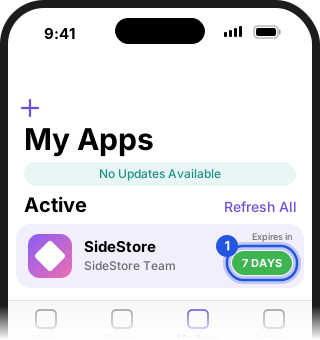
-
Download Telegrive in Safari. If you opened this page from Telegram or another app, open it in Safari first. When Safari asks, tap Download. The file goes to Downloads in the Files app.
Download Telegrive for iPhone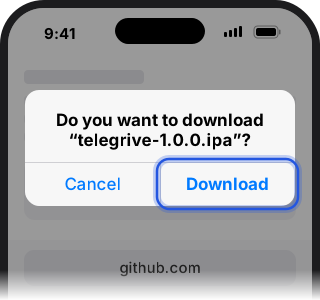
-
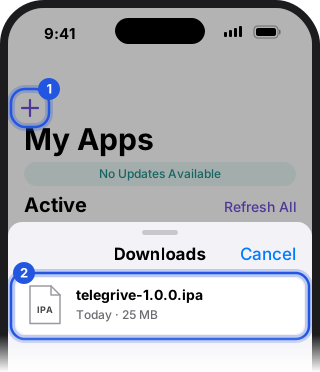
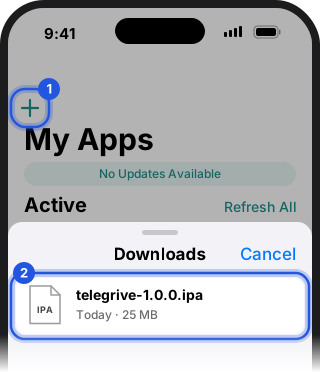
Install Telegrive. With LocalDevVPN connected, open SideStore, go to My Apps, and tap + at the top. Choose the Telegrive file from Downloads and wait for it to install.
-
Open Telegrive and sign in with your Telegram phone number. It finds your drive, or sets one up, and offers to back up your photos.
Every week
Open LocalDevVPN and tap Connect. Then open SideStore, go to My Apps and tap Refresh All. That refreshes SideStore and Telegrive together. If SideStore itself runs out, it won't open either: plug into the computer and install it with iloader again, as above.
Install with AltStore
On your computer
-
Windows only: install iTunes and iCloud from Apple's website. AltServer needs them to talk to your iPhone. Use the links in AltStore's Windows guide. The versions from the Microsoft Store don't work.
-
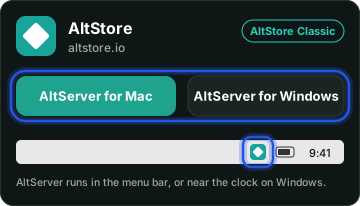
Install AltServer from altstore.io; you want AltStore Classic. On a Mac, move AltServer to Applications and open it; its icon appears in the menu bar. On Windows, run Setup, then find AltServer in the Start menu, right-click it and choose Run as administrator; its icon appears near the clock.
-
Connect your iPhone to the computer with the cable, and unlock it. If the iPhone asks
Trust This Computer?
, tap Trust and enter your passcode. -
Turn on Wi-Fi sync, so AltStore can refresh without the cable later. On a Mac, select your iPhone in Finder and tick
Show this iPhone when on Wi-Fi
. On Windows, open iTunes, select your iPhone and tickSync with this iPhone over Wi-Fi
. Click Apply.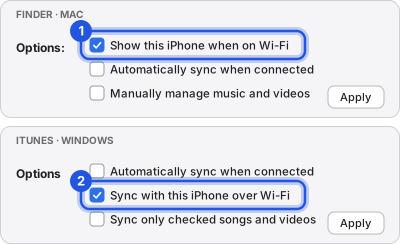
-
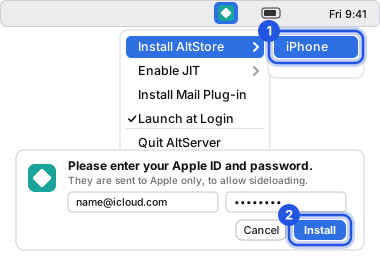
Click the AltServer icon, choose Install AltStore, then your iPhone. Enter your Apple Account email and password. On a Mac, if it asks you to install the Mail plug-in, follow AltStore's steps for that and try again. Wait until AltServer says AltStore was installed.
On your iPhone
-
Trust your Apple Account. Open Settings›General›VPN & Device Management. Under Developer App, tap your email, tap Trust, then tap Trust again.
-
Turn on Developer Mode (iOS 16 and newer). Open Settings›Privacy & Security›Developer Mode, near the bottom. Turn it on and tap Restart. When the iPhone is back on, tap Turn On and enter your passcode.
-
Download Telegrive in Safari. If you opened this page from Telegram or another app, open it in Safari first. When Safari asks, tap Download. The file goes to Downloads in the Files app.
Download Telegrive for iPhone -
Install Telegrive. Make sure AltServer is running on the computer and both are on the same Wi-Fi. Open AltStore, go to My Apps, and tap + at the top. Choose the Telegrive file from Downloads. If AltStore asks you to sign in, use the same Apple Account.
-
Open Telegrive and sign in with your Telegram phone number. It finds your drive, or sets one up, and offers to back up your photos.
Every week
AltStore refreshes Telegrive on its own whenever your iPhone is on the same Wi-Fi as the computer and AltServer is running, so it helps to have AltServer open when the computer starts. To refresh by hand, open AltStore, go to My Apps and tap Refresh All.
Updating Telegrive
New versions are listed on the Releases page. Download the new file and install it the same way as the first time, with the same helper app and Apple Account. It replaces the old version, and you stay signed in.
Want to check a download? Every release lists its files in SHA256SUMS.txt.
If something goes wrong
Telegrive won't open, or closes right away
If it worked before, its 7 days have most likely run out. Refresh it with your helper app, as in the Every week box above. Don't delete Telegrive to fix it: your files are safe in Telegram either way, but you'd have to sign in again.
If it has never opened, check the two iPhone steps: trusting your Apple Account, and turning on Developer Mode.
I can't find Developer Mode
It's only on iOS 16 and newer, and it appears once an app has been installed with your Apple Account. Finish the computer steps first, then look again under Settings, Privacy & Security, near the bottom. On iOS 15 there's nothing to turn on, so skip that step.
It says I've reached a limit
A free Apple Account can have three apps installed this way at once, counting SideStore or AltStore. Remove one you don't need and try again.
It can also add no more than ten new apps a week. If that's the limit you hit, wait a few days and try again.
Is it safe to enter my Apple Account password?
The helper app sends it to Apple, to get the 7-day permission that lets Telegrive run on your iPhone. Telegrive itself never sees it.
If you'd rather keep your main account out of it, create a separate free Apple Account and use it only in the helper app. Your iPhone can stay signed in to your usual one.
Does the weekly refresh touch my files?
No. It only decides whether the app opens. Your files are in your Telegram channel, and what Telegrive keeps on the iPhone stays through every refresh.
Is the iPhone version different from Android?
It opens the same drive and does most of the same things. Photo backup runs while Telegrive is open rather than in the background, and the Google Photos import, watched folders, the document scanner and sharing in from other apps aren't on iPhone yet.
Still stuck? Report a problem and say which helper app you used and what it showed.